2026-3 & 2026-2
If you need to manage project access for individual users by exception after setting up Portfolio Security, see Project Security & Access.
- Only users with the System Administrator security role can manage business units and security roles in the BrightWork 365 environment.
Before proceeding:
- Familiarize yourself with the content in Portfolio Security & Access Overview.
- Confirm that Modern business units have been enabled in the BrightWork 365 environment as described in the BrightWork 365 Install Guide.pdf and BrightWork365 Upgrade Guide.pdf
- Have a clear understanding of the business unit and portfolio hierarchy that you want to create, which business unit users will reside in, and the security roles they will be given in their home business unit and in other business units if you plan to provide some users with extra access.
Prerequisite Step: Design your organization's security access hierarchy
Prior to physically implementing a security access hierarchy and configuration, map out the design 'on paper' along with an analysis of practical implications and future needs.
See Portfolio Security & Access Overview.
Step 1: Create an all-access parent business unit
This step is for users that need access to all app records, i.e., "{org name} All Access". It is a best practice for future design flexibility.
-
Login to the https://admin.powerplatform.microsoft.com/environments and select your environment.
-
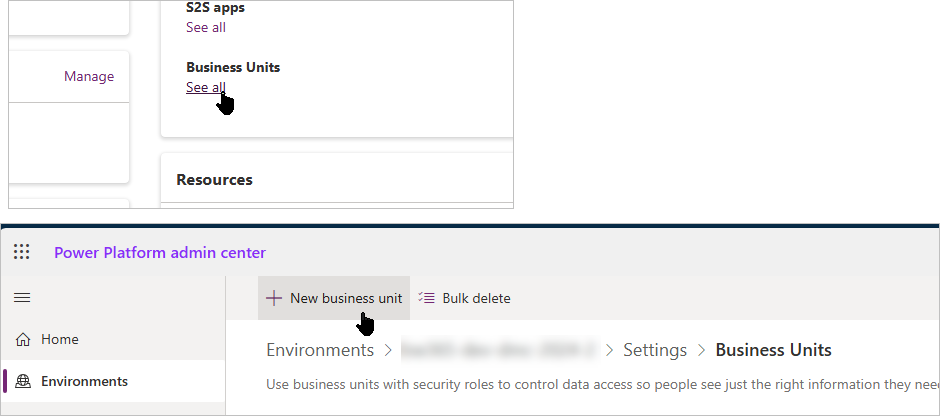
Click Business Units > See all and + New business unit.
-
Select the Default business unit.
-
Click Save.
Step 2: Create a business unit hierarchy under your All Access business unit
Child business units inherit user security role assignments from their parent business units.
 Business Units Business Units
|
 Business Unit Hierarchy Business Unit Hierarchy
|
Step 3: Assign users to a home business unit
- A user with the BrightWork PMO security role will have organization-wide global access regardless of their assigned business unit. They will have access to all content within BrightWork 365 including confidential projects.
- If a user’s business unit is changed, all of their security roles are removed from all business units. They will need to be reassigned all of their security roles in the new business unit. Take note of their current security role assignments prior to any business unit change.
Assigning users to a home business unit will in turn control which portfolios, programs, and projects they have access to. Users will retain their current access level to individual projects after they are assigned to a business unit - a user's project access level can be viewed on the project's Team Tab. For more information see Project Security & Access.
- It can take 30-60 seconds per user when their business unit is changed using the admin center Modern UI.
- User business unit assignments can be viewed in person views in the Admin Area.
In the Microsoft Power Platform admin center:
- Select the BrightWork 365 environment.
- Navigate to Settings > Users + permissions.
- Select Users.
- Select the relevant user.
- On the action bar at the top of the screen select Change business unit.
- In the Change business unit pane, select a business unit.
- Select OK.
Step 4: Assign security roles to users in their home business unit
- All users with the BrightWork Team Member security role will be available for selection.
- If you want to assign a user security roles in more than one business unit (giving them the same security role in each), you should do so individually, not in bulk.
Assign security roles to users
In the Microsoft Power Platform admin center:
- Select the BrightWork 365 environment.
- Navigate to Settings > Users + permissions.
- Select Users.
- Select the relevant user.
- On the action bar at the top of the screen click Manage security roles.
- Confirm the business unit selection.
- Select the Basic User and BrightWork Team Member security roles (at a minimum), and any other desired security roles the user needs.
- Click Save.
Users can only be a member of one business unit but can be given the same security role they have in their home business unit in other business units to broaden their access to portfolios, programs, and projects.
Users assigned security roles in secondary business units must be given the same security roles that they've been given in their home business unit.
For example, Alex is a BrightWork Project Manager in Marketing, which is his home business unit. He can also be given the BrightWork Project Manager security role in the secondary Product Development business unit.
In the Microsoft Power Platform admin center:
- Select the BrightWork 365 environment.
- Navigate to Settings > Users + permissions.
- Select Users.
- Select the relevant user.
- On the action bar at the top of the screen click Manage security roles.
- Clear the existing business unit entry.
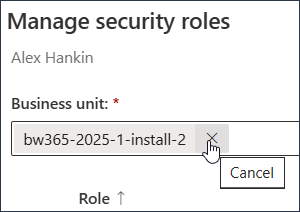
- Search for the relevant secondary business unit and select it.
- Assign all of the security roles that the user has in their home business unit, e.g., Basic User, BrightWork Team Member, BrightWork Project Manager.
- Click Save.
Step 6: Select an Owning Business Unit in portfolios
Portfolios act as the top parent levels of the hierarchy in BrightWork 365 (Portfolios > Programs > Projects). An Owning Business Unit must be selected when creating portfolios. See Portfolios for details.
Programs
Programs inherit the Owning Business Unit from their parent portfolio. Assign programs to the portfolio that is associated with the Owning Business Unit desired for the program and its child projects. See Programs for details.
- If a program is moved to a different portfolio with a different associated business unit, or if a portfolio's associated business unit is changed, some users who never had access to that part of the hierarchy will now have access, and some that had access previously will no longer have access; this will be determined by either their own business unit, or from access granted at the project level.
- Customers who want their custom tables to be included in the Project move Program and Program move Portfolio flows will need to request assistance from their Customer Success Partner to update the child flows in their custom solution.
Check User Access
- Navigate to the Portfolio or Program and click the Check Access button in the toolbar.
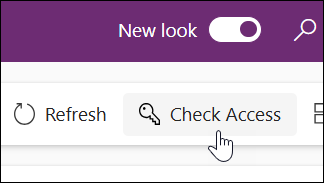
- Click the Who has access link to see information about all users that have access to the project
- You can click the User details button for a user to view a report that tells why the user has access.
2026-1
If you need to manage project access for individual users by exception after setting up Portfolio Security, see Project Security & Access.
- Only users with the System Administrator security role can manage business units and security roles in the BrightWork 365 environment.
- Customers that want their custom tables to be included in the Project move Program and Program move Portfolio flows will need to request assistance from their Customer Success Partner to update the child flows in their custom solution.
Before proceeding:
- Familiarize yourself with the content in Portfolio Security & Access Overview.
- Confirm that Modern business units have been enabled in the BrightWork 365 environment as described in the BrightWork 365 Install Guide.pdf and BrightWork365 Upgrade Guide.pdf
- Have a clear understanding of the business unit and portfolio hierarchy that you want to create, which business unit users will reside in, and the security roles they will be given in their home business unit and in other business units if you plan to provide some users with extra access.
Prerequisite Step: Design your organization's security access hierarchy
Prior to physically implementing a security access hierarchy and configuration, map out the design 'on paper' along with an analysis of practical implications and future needs.
See Portfolio Security & Access Overview.
Step 1: Create an all-access parent business unit
This step is for users that need access to all app records, i.e., "{org name} All Access". It is a best practice for future design flexibility.
-
Login to the https://admin.powerplatform.microsoft.com/environments and select your environment.
-
Click Business Units > See all and + New business unit.
-
Select the Default business unit.
-
Click Save.
Step 2: Create a business unit hierarchy under your All Access business unit
Child business units inherit user security role assignments from their parent business units.
Business Units
|
Business Unit Hierarchy
|
Step 3: Assign users to a home business unit
- A user with the BrightWork PMO security role will have organization-wide global access regardless of their assigned business unit. They will have access to all content within BrightWork 365 including confidential projects.
- If a user’s business unit is changed, all of their security roles are removed from all business units. They will need to be reassigned all of their security roles in the new business unit. Take note of their current security role assignments prior to any business unit change.
Assigning users to a business unit will in turn control which portfolios, programs, and projects they have access to. Users will retain their current access level to individual projects after they are assigned to a business unit - a user's project access level can be viewed on the project's Team Tab. For more information see Project Security & Access.
- It can take 30-60 seconds per user when their business unit is changed using the admin center Modern UI.
- User business unit assignments can be viewed in person views in the Admin Area.
In the Microsoft Power Platform admin center:
- Select the BrightWork 365 environment.
- Navigate to Settings > Users + permissions.
- Select Users.
- Select the relevant user.
- On the action bar at the top of the screen select Change business unit.
- In the Change business unit pane, select a business unit.
- Select OK.
Step 4: Assign security roles to users in their home business unit
- All users with the BrightWork Team Member security role will be available for selection.
- If you want to assign a user security roles in more than one business unit (giving them the same security role in each), you should do so individually, not in bulk.
Assign security roles to users individually
In the Microsoft Power Platform admin center:
- Select the BrightWork 365 environment.
- Navigate to Settings > Users + permissions.
- Select Users.
- Select the relevant user.
- On the action bar at the top of the screen click Manage security roles.
- Confirm the business unit selection.
- Select the Basic User and BrightWork Team Member security roles (at a minimum), and any other desired security roles the user needs.
- Click Save.
Users can only be a member of one business unit, but can be given the same security role they have in their home business unit in other business units to broaden their access to portfolios, programs, and projects.
Users assigned security roles in secondary business units must be given the same security roles that they've been given in their home business unit.
For example, Alex is a BrightWork Project Manager in Marketing, which is his home business unit. He can also be given the BrightWork Project Manager security role in the secondary Product Development business unit.
In the Microsoft Power Platform admin center:
- Select the BrightWork 365 environment.
- Navigate to Settings > Users + permissions.
- Select Users.
- Select the relevant user.
- On the action bar at the top of the screen click Manage security roles.
- Clear the existing business unit entry.
- Search for the relevant secondary business unit and select it.
- Assign all of the security roles that the user has in their home business unit, e.g., Basic User, BrightWork Team Member, BrightWork Project Manager.
- Click Save.
Step 6: Select an Owning Business Unit in portfolios
Portfolios act as the top parent levels of the hierarchy in BrightWork 365 (Portfolios > Programs > Projects). An Owning Business Unit must be selected when creating portfolios. See Portfolios for details.
Programs
Programs inherit the Owning Business Unit from their parent portfolio. Assign programs to the portfolio that is associated with the Owning Business Unit desired for the program and its child projects. See Programs for details.
- If a program is moved to a different portfolio with a different associated business unit, or if a portfolio's associated business unit is changed, some users who never had access to that part of the hierarchy will now have access, and some that had access previously will no longer have access; this will be determined by either their own business unit, or from access granted at the project level.
-
Customers who want their custom tables to be included in the Project move Program and Program move Portfolio flows will need to request assistance from their Customer Success Partner to update the child flows in their custom solution.
Check User Access
- Navigate to the Portfolio or Program and click the Check Access button in the toolbar.
- Click the Who has access link to see information about all users that have access to the project
- You can click the User details button for a user to view a report that tells why the user has access.
