2026-2

Project Management Context
Planning a project prior to completing the build out of tasks will pay dividends throughout the full duration of the project. Planning is a team sport, and gaining input and understanding from the larger project team will be invaluable and avoid the pitfalls present when a project manager tries to complete this crucial process piece on their own.
The final set of tasks should be a combination of high-level summary tasks (typically of the Stage task type) that are broken down into smaller child work items with their own start and finish dates, with team members assigned to the work. As the project execution progresses, you'll be able to track any gaps between the originally planned task dates and their actual dates and make adjustments along the way as necessary.
BrightWork 365 makes it easy to plan and execute your project tasks by splitting the management of tasks into two separate, but integrated and synchronized sections: Gantt and Grid. This article focuses on the Grid, which provides a quick and easy method for users to enter project tasks and manage their Work Breakdown Structure independently while synchronizing it with the Gantt.
- User entered dates will be saved as time zone independent UTC dates, not user local dates; the same dates will be displayed for all users irrespective of time zone.
- The date format displayed in the Gantt uses the format specified in the logged in user's personal options settings.
- Because summary tasks (parent with child tasks) are child rollup tasks, the following values cannot be manually edited: Duration, Start Date, Finish Date, Percent Complete.
- The BrightWork Team Member and higher security roles can Create, Read, Write, and Delete project tasks.
Add Task
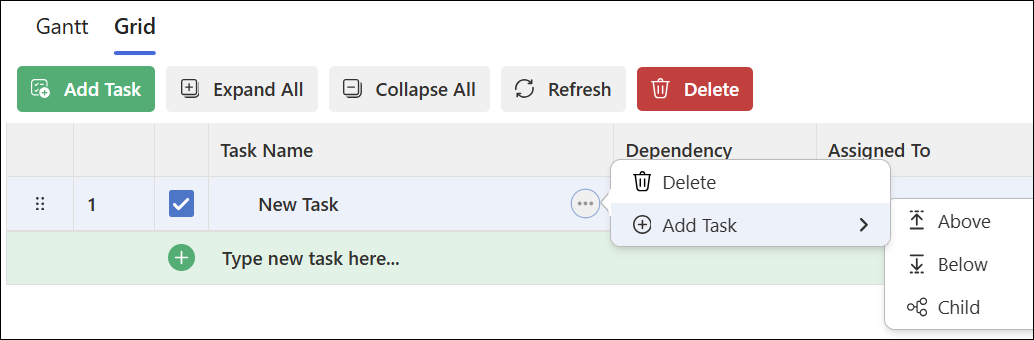
New tasks will inherit default field values from the task above them for certain fields, e.g., Duration, Current Start, Current Finish, Work, and Scheduling Type.
- Task start and finish dates will be automatically adjusted based on global and project specific calendar settings. See BrightWork 365 Starter Project Templates, Global Settings, and Non-Working Days.
- Click the Tasks tab in a project.
- Click the Grid sub-tab.
- You can add a new task in several ways:
- In the Grid toolbar click Add Task.
Or, - Click the context menu, click Add Task and choose one of the available options.
Or, - Press the keyboard Enter key while editing the last task row to create a new task row.
Or, - Use the Create Task Row feature at the bottom of the Grid. Type in individual tasks or paste multiple tasks copied from a column of text created elsewhere. You will be given the option to create the entry as separate tasks or as a single task.

-
- If you pasted in content and then canceled the option to create the entry as separate tasks, the entry will remain in the Quick Add field. If you then hit the Enter key, the entry will be added as a single task
- With the Create Task Row function, Start Date and Duration inform the End Date.
- If Duration is hidden, it is still getting applied to the End Date calculation.
- Duration must be unhidden and updated directly to change the End Date.
- In the Grid toolbar click Add Task.

Columns
Name
The given name of the task. Task names are limited to 100 characters.
Dependency

The Grid provides a simple, intuitive and quick interface for managing dependencies between tasks. They can be interacted with via inline keyboard inputs or menu-based changes. Dependency updates synchronize with the Gantt.
Hover over Dependency elements to display an extended tooltip.
Double-click the Dependency field to type or double-click the field to choose the dependency icon to expose a drop-down list of tasks. Click the desired dependency task and set the dependency Type and any necessary Offset days.
Note that dependency functionality is not applicable to summary tasks.
Dependency Type
- Finish-Start (FS): The predecessor task must be completed before the successor task can start.
- Start-Start (SS): The successor task cannot begin until the predecessor task begins.
- Finish-Finish (FF): The successor task cannot be completed until the predecessor task is completed.
- Start-Finish (SF): The successor task cannot be completed until the predecessor task begins.
If not specified, the dependency type will default to Finish-Start (FS).
Text Based Inputs

Adding a dependency to the grid can be quickly and easily managed via keyboard inputs. Simply type the task row reference and determine your Start-Finish combination to ensure the dependency begins at exactly the right time. Should you wish to include a lead or lag using this method, it can be added at the end of the task, for example:
1FS + 1 will begin 1 day after the last task finish time.
1FS - 2 will begin 2 days before the last task finish time.
Dependency Menu Interface

Alternatively, you can use the Dependency menu interface to select the task based on row or task name. You will then be able to review the task with a visual preview and determine the start –finish selection and lead or lag via the offset sub menu.
This method will then input the dependency in the Grid in the same manner at Text Based inputs for consistency.
Offsets – Lead and Lag
Lead allows the next task to start x days before the last task finishes
Lag ensures the next task must wait for the last task to finish.
- A successor milestone task that has a Finish-Start relationship with its predecessor will have a Start Date and Finish Date that is equal to the Finish Date of the predecessor.
- The Lead and Lag references are noted differently in the Grid vs the Gantt, however, the scheduling result is the same. We will address this display difference in a future release.
If a task with dependencies (predecessor or successor tasks) later becomes a summary task, the dependencies will be removed.
Scheduling Type
What are task scheduling types?
In project management, Task Types determine how the system calculates the relationship between three key variables: Work, Duration, and Units. The three task scheduling types in BrightWork 365 are: Fixed Duration, Fixed Work, and Fixed Unit.
The core formula governing these is:
Work = Duration * Units
When you set a task to a specific type, you are "pinning" one of those variables, so it remains constant even if the other two change.
Definitions:
- Duration: The number of days required to complete the task.
- Work: The number of hours required to complete the task.
- Unit: The percentage of a resource's hours allotted to complete the task.
- The project default scheduling type is configured in the Schedule Settings of projects.
- The Scheduling Type logic will not update unless all three of Duration, Work and Resource are present in the task.
Relationship Between the Variables
| Task Type | Changes in Duration | Changes in Work | Changes in Resource Units |
| Fixed Duration | Work updates | Resource Unit updates | Work updates |
| Fixed Work | Resource Unit updates | Duration updates | Duration updates |
| Fixed Unit | Work updates | Duration updates | Duration updates |
Scheduling Type Scenarios
| Fixed Duration | ||
| Setup | Action | Outcome |
|
Duration: 1 day
Work: 0 hrs. Resources: 1 |
Set Work to 8 hrs. | Resource assigned to 8 hrs. of Work |
|
Duration: 1 day
Work: 0 hrs. Resources: 1 |
Set Work to 12 hrs. | Resource set to 150% capacity |
|
Duration: 1 day
Work: 8 hrs. Resources: 0 |
Add resources 1, 2, 3, etc. | Each resource assigned increases Work by 8.00 hrs., but maintains Duration of 1 day |
| Fixed Work | ||
| Setup | Action | Outcome |
|
Duration: 1 day
Work: 8 hrs. Resources: 1 at 100% |
Set Duration to 2 days | Resource Unit reduces to 50% |
|
Duration: 1 day
Work: 8 hrs. Resources: 2 at 50% |
Set Duration to 0.5 days | Resource Units increase to 100% |
|
Duration: 0.75 days
Work: 18 hrs. Resources: 3 at 100% |
Set all resources to 50% | Duration extends to 1.5 days |
| Fixed Unit | ||
| Setup | Action | Outcome |
|
Duration: 1 day
Work: 6 hrs. Resources: 1 at 75% |
Set Work to 12 hrs. | Duration extends to 2 days |
|
Duration: 1 day
Work: 8 hrs. Resources: 2 at 50% |
Set Work to 16 hrs. | Duration extends to 2 days |
|
Duration: 2 days
Work: 36 hrs. Resources: 3 at 50%, 75%, 100% |
Set Duration to 1.5 days | Work reduces to 27 hrs. |
If a Grid task is initially given a Work value of 0% and is later changed to a higher value, the associated changes to the Work and Duration values will not be reflected in the Gantt, and the task will be represented as a milestone in the Gantt.
Assigned To
After double-clicking into the Assigned To column, select and assign one or more users to a task with specified individual Resource Unit work allocations, so you can efficiently and accurately distribute work and ensure clear ownership. Set precise commitment percentages across multiple resources. The ‘Assigned To’ percentage allocation ensures every user’s commitment is properly documented, preventing schedule conflicts and avoiding single points of failure.
Duration
The number of days between the Current Start and Current Finish dates. When dates are updated in the Task record, the Duration will be automatically calculated upon saving the task. When Duration is updated in the Task record, the Finish Date will be automatically calculated upon saving the task. There is support for up to 2 decimal places. The Duration value cannot be less than 0.13 of a Day as the Gantt does not support durations of less than 1 hour.
Current Start and Current Finish
The Start and Finish dates entered at the time of task edit, or that were automatically set through a dependency (and therefore cannot be manually edited). Task dates can be changed by dragging the left, center, or right part of the date bar and dragging. Current Start dates will automatically pick the next valid date. Weekend dates are disabled.
- When a task has a Finish-Start (FS) or Start-Start (SS) dependency, the Current Start date cannot be manually modified.
- When a task has Finish-Finish (FF) or Start-Finish (SF) dependency, the Current Finish date cannot be manually modified.
- Three-digit numbers default to 1970.
Task Type
Use this field to set a task’s type to Task, Stage or Deliverable, so you can structure the work hierarchy conveniently.
Work
If applicable, enter the number of hours required to complete the task.
% Complete
Add an estimated Percent Complete. The Percent Complete value can also be set in the left-side grid portion of the Gantt, as well as in the Gantt Chart section by dragging the Percent Complete bar (it cannot be set from within work reports).
The automatically calculated summary task Percent Complete values are based on the total completed duration of all child tasks as a percentage of the total duration of all child tasks.
Target Start
The target date entered manually, or automatically entered when the project was last baselined. See section Baseline the Schedule below.
Target Finish
The target date entered manually, or automatically entered when the project was last baselined. See section Baseline the Schedule below.
Description
Quickly update or add detail to a task description using an intuitive, keyboard-friendly pop-out editor that supports multi-line plain text with basic formatting and a 2000 character limit.
Toolbar Actions

Add Task
See Add Task section above.
Expand All
Displays the full hierarchy of parent tasks and their respective subtasks.
Collapse All
Hides all subtasks, displaying only the top-level (root) tasks in the structure.
Refresh
Refreshes the Grid contents.
Delete
Delete selected individual tasks.
Indent
The Indent option will only appear if a task exists above the selected task and the task above is at the same indent level.
Outdent
The Outdent option will only appear if the selected task is already indented.
Expand View
Standard View Mode
Set within a tab that is displayed among the rest of the solution elements.

Expanded View Mode
A larger pop-out view.

- To enter Expanded view mode, click the Expand View icon
- To exit Expanded view mode, click the Close icon
Full Screen View Mode
An even larger view that covers the boundaries of the solution.

- To enter Full Screen view mode, from the Expanded View noted above, click the full screen mode icon
- To enter back into Expanded view mode, click the Exit full screen mode icon
- To enter back into Standard view mode, click the Close icon
(typically F11 on the keyboard) to further enlarge any of the screen view modes.
The following settings are not maintained between views:
- Highlighted rows.
- Baseline and Critical Path.
- Expand, Collapse, and Zoom.
Context Menu Actions
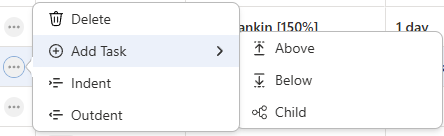
Delete
Delete the selected task.
Add Task
See Add Task section above.
Indent
The Indent option will only appear if a task exists above the selected task and the task above is at the same indent level.
Outdent
The Outdent option will only appear if the selected task is already indented.
Mark Complete

This functionality provides single click interaction to mark a task as Complete, or to click the icon again to mark the task as Not Started. If there are multiple assignees, a confirmation dialogue will display prior to marking the task complete. With this approach, the user can click the relevant icon area to cycle through an editable task's status in a loop of the following order: Not Started → Complete → Not Started.
Includes automatic In Progress and Completed icons for Summary Tasks (clear when not started).
- Mark Complete moves to In Progress when Percentage Complete updated to be <100 and >0.
- Percent Complete updated when Mark Complete actioned.
- Does not present a confirmation dialog when multiple users are assigned.
Multi-Select
To delete multiple rows simultaneously:
- Select the rows to be deleted by clicking the selection box.
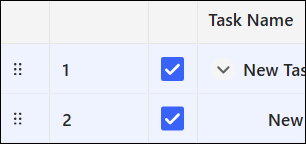
- Click the Delete action.
- Click Confirm to complete the action.
Column Filtering

Column Filtering is applied to the following fields on the Grid:
|
|
When you hover over columns, those that can be filtered will be noted with a filter icon in the upper-right corner of the column. Click the filter icon and choose from one of the available Filter Types.
Filters remain applied on standard grid view, are not applied to expanded or full screen views but filters persist when you navigate back to the standard grid view.
The final Add button is hidden until you click the value field again.
After column filters have been set, they can be cleared individually by clicking Clear in the column's filter dialog.


All active column filters can be cleared simultaneously by clicking Clear All Filters on the toolbar (only visible when column filters have been set).

Searching with Filter By

Grid Filter By searching allows users to search the Grid Task Names and return items that meet the search criteria.
When the user has a 'Filter By' term entered:
- Toolbar items will be disabled: Add Task, Delete, Indent, Outdent
- Quick task add row will be removed
- Drag and drop will be disabled
- Context menu will be disabled
The Filter By instance can be cleared by clicking Clear All Filters on the toolbar (only visible when a filter has been set).
Drag and Drop
To drag and drop items, hover the mouse over the drag icon in the left-most column, click and drag the item vertically, and drop it in the desired location. If when moving an item to a new location, the item row's horizontal line is a single line, the item will be dropped as a task in the same hierarchy level as the task directly above it. Two lines on either side of the row means the item will be dropped as a child-task of the selected item. Multi-select is currently not supported.
Conditional Formatting
Conditional formatting visual cues are applied to any tasks that have a late start or late finish so you can quickly determine their schedule status. Late Current Start dates appear in red text. Late Current Finish dates appear with red text and red fill. This setting remains always on.
Grid Settings

BrightWork PMO Manager security role holders and the Actual Project Manager of the project are able to configure the visibility and order of columns. These settings can be saved, reset, or cancelled, so they can they can control and preserve the preferred column layout across the project for all users.
When you open the settings dialog and choose to edit column visibility, you can show or hide optional columns while mandatory columns remain permanently visible, so you can tailor the grid to your workflow while ensuring essential fields always appear.

When you reorder columns within the settings dialog, you can freely drag and drop columns except for mandatory columns such as Task Name, so you can customize the grid layout while ensuring required columns always remain fixed in designated positions.
Keyboard Navigation
| Interaction Keys | Description |
|---|---|
| F2 | Edits the selected cell. |
| Enter | Saves the current cell. Toggles checkboxes. |
| Tab | Saves the current cell and moves selection one cell to the right. When in a Dependency cell, cycles through the Dependency drop-down list. When in an Assigned To cell, cycles through the Assignee drop-down list. |
| Shift + Tab | Saves the current cell and moves the selection one cell to the left. |
| Esc | Deselects the currently selected element. |
| Spacebar | Toggles checkboxes. |
| Ctrl + Home | Navigates to the first cell in the Grid. |
| Ctrl + End | Navigates to the last cell in the Grid. |
| Home | Moves focus to the first cell on the selected row. |
| End | Moves focus to the last cell on the selected row. |
| Up Arrow | Moves selection up. |
| Down Arrow | Moves selection down. |
| Right Arrow | Moves selection right. |
| Left Arrow | Moves selection left. |
Troubleshooting
Multiple Dependencies & Unexpected Offsets
Scenario
- Multiple tasks are linked with dependency relationships and 0 days offset.
- Add another dependency with 0 offset to a task that finishes later than the first dependency task.
- One or more of these tasks is edited in the Gantt.
- The first dependency task automatically gets an offset added to match the new Start date.
- If you adjust the duration of either dependency task, that new offset remains.
Workaround
- As soon as a second dependency (or more) are added, the first dependency Offset should be changed back to 0. Changing task duration on any predecessor task should not introduce a new Offset.
Spacebar Used on Cell (in read-mode) Causes Grid to Scroll Down
This is associated with default browser behavior.
2026-1
Project Management Context
Planning a project prior to completing the build out of tasks will pay dividends throughout the full duration of the project. Planning is a team sport, and gaining input and understanding from the larger project team will be invaluable and avoid the pitfalls present when a project manager tries to complete this crucial process piece on their own.
The final set of tasks should be a combination of high-level summary tasks (typically of the Stage task type) that are broken down into smaller child work items with their own start and finish dates, with team members assigned to the work. As the project execution progresses, you'll be able to track any gaps between the originally planned task dates and their actual dates and make adjustments along the way as necessary.
BrightWork 365 makes it easy to plan and execute your project tasks by splitting the management of tasks into two separate, but integrated and synchronized sections: Gantt and Grid. This article focuses on the Grid, which provides a quick and easy method for users to enter project tasks and manage their Work Breakdown Structure independently while synchronizing it with the Gantt.
- User entered dates will be saved as time zone independent UTC dates, not user local dates; the same dates will be displayed for all users irrespective of time zone.
- The date format displayed in the Gantt uses the format specified in the logged in user's personal options settings.
- Because summary tasks (parent with child tasks) are child rollup tasks, the following values cannot be manually edited: Duration, Start Date, Finish Date, Percent Complete.
- The BrightWork Team Member and higher security roles can Create, Read, Write, and Delete project tasks.
Add Task
New tasks will inherit default field values from the task above them for certain fields, e.g., Duration, Current Start, Current Finish, Work, and Scheduling Type.
- Task start and finish dates will be automatically adjusted based on global and project specific calendar settings. See BrightWork 365 Starter Project Templates, Global Settings, and Non-Working Days.
- Adding a new task with the + New Project Task option found on the Project Stage form is not supported.
- Click the Tasks tab in a project.
- Click the Grid sub-tab.
- You can add a new task in several ways:
- In the Grid toolbar click Add Task.
Or, - Click the context menu, click Add Task and choose one of the available options.
Or, - Press the keyboard Enter key while editing the last task row to create a new task row.
Or, - Use the Quick Add feature at the bottom of the Grid.
- In the Grid toolbar click Add Task.
Columns
Name
The given name of the task. Task names are limited to 100 characters.
Dependency
The Grid provides a simple, intuitive and quick interface for managing dependencies between tasks. They can be interacted with via inline keyboard inputs or menu-based changes. Dependency updates synchronize with the Gantt.
Double-click the Dependency field and click the dependency icon to expose a drop-down list of tasks. Click the desired dependency task and set the dependency Type and any necessary Offset days.
Note that dependency functionality is not applicable to summary tasks.
Dependency Type
- Finish-Start (FS): The predecessor task must be completed before the successor task can start.
- Start-Start (SS): The successor task cannot begin until the predecessor task begins.
- Finish-Finish (FF): The successor task cannot be completed until the predecessor task is completed.
- Start-Finish (SF): The successor task cannot be completed until the predecessor task begins.
If not specified, the dependency type will default to Finish-Start (FS).
Text Based Inputs
Adding a dependency to the grid can be quickly and easily managed via keyboard inputs. Simply type the task row reference and determine your Start-Finish combination to ensure the dependency begins at exactly the right time. Should you wish to include a lead or lag using this method, it can be added at the end of the task, for example:
1FS + 1 will begin 1 day after the last task finish time.
1FS - 2 will begin 2 days before the last task finish time.
Dependency Menu Interface
Alternatively, you can use the Dependency menu interface to select the task based on row or task name. You will then be able to review the task with a visual preview and determine the start –finish selection and lead or lag via the offset sub menu.
This method will then input the dependency in the Grid in the same manner at Text Based inputs for consistency.
Offsets – Lead and Lag
Lead allows the next task to start x days before the last task finishes
Lag ensures the next task must wait for the last task to finish.
- A successor milestone task that has a Finish-Start relationship with its predecessor will have a Start Date and Finish Date that is equal to the Finish Date of the predecessor.
- The Lead and Lag references are noted differently in the Grid vs the Gantt, however, the scheduling result is the same. We will address this display difference in a future release.
If a task with dependencies (predecessor or successor tasks) later becomes a summary task, the dependencies will be removed.
Scheduling Type
What are task scheduling types?
In project management, Task Types determine how the system calculates the relationship between three key variables: Work, Duration, and Units. The three task scheduling types in BrightWork 365 are: Fixed Duration, Fixed Work, and Fixed Unit.
The core formula governing these is:
Work = Duration * Units
When you set a task to a specific type, you are "pinning" one of those variables, so it remains constant even if the other two change.
Definitions:
- Duration: The number of days required to complete the task.
- Work: The number of hours required to complete the task.
- Unit: The percentage of a resource's hours allotted to complete the task.
- The project default scheduling type is configured in the Schedule Settings of projects.
- The Scheduling Type logic will not update unless all three of Duration, Work and Resource are present in the task.
Relationship Between the Variables
| Task Type | Changes in Duration | Changes in Work | Changes in Resource Units |
| Fixed Duration | Work updates | Resource Unit updates | Work updates |
| Fixed Work | Resource Unit updates | Duration updates | Duration updates |
| Fixed Unit | Work updates | Duration updates | Duration updates |
Scheduling Type Scenarios
| Fixed Duration | ||
| Setup | Action | Outcome |
|
Duration: 1 day
Work: 0 hrs. Resources: 1 |
Set Work to 8 hrs. | Resource assigned to 8 hrs. of Work |
|
Duration: 1 day
Work: 0 hrs. Resources: 1 |
Set Work to 12 hrs. | Resource set to 150% capacity |
|
Duration: 1 day
Work: 8 hrs. Resources: 0 |
Add resources 1, 2, 3, etc. | Each resource assigned increases Work by 8.00 hrs., but maintains Duration of 1 day |
| Fixed Work | ||
| Setup | Action | Outcome |
|
Duration: 1 day
Work: 8 hrs. Resources: 1 at 100% |
Set Duration to 2 days | Resource Unit reduces to 50% |
|
Duration: 1 day
Work: 8 hrs. Resources: 2 at 50% |
Set Duration to 0.5 days | Resource Units increase to 100% |
|
Duration: 0.75 days
Work: 18 hrs. Resources: 3 at 100% |
Set all resources to 50% | Duration extends to 1.5 days |
| Fixed Unit | ||
| Setup | Action | Outcome |
|
Duration: 1 day
Work: 6 hrs. Resources: 1 at 75% |
Set Work to 12 hrs. | Duration extends to 2 days |
|
Duration: 1 day
Work: 8 hrs. Resources: 2 at 50% |
Set Work to 16 hrs. | Duration extends to 2 days |
|
Duration: 2 days
Work: 36 hrs. Resources: 3 at 50%, 75%, 100% |
Set Duration to 1.5 days | Work reduces to 27 hrs. |
If a Grid task is initially given a Work value of 0% and is later changed to a higher value, the associated changes to the Work and Duration values will not be reflected in the Gantt, and the task will be represented as a milestone in the Gantt.
Assigned To
After double-clicking into the Assigned To column, select and assign one or more users to a task with specified individual Resource Unit work allocations, so you can efficiently and accurately distribute work and ensure clear ownership. Set precise commitment percentages across multiple resources. The ‘Assigned To’ percentage allocation ensures every user’s commitment is properly documented, preventing schedule conflicts and avoiding single points of failure.
Duration
The number of days between the Current Start and Current Finish dates. When dates are updated in the Task record, the Duration will be automatically calculated upon saving the task. When Duration is updated in the Task record, the Finish Date will be automatically calculated upon saving the task. There is support for up to 2 decimal places. The Duration value cannot be less than 0.13 of a Day as the Gantt does not support durations of less than 1 hour.
Current Start and Current Finish
The Start and Finish dates entered at the time of task edit, or that were automatically set through a dependency (and therefore cannot be manually edited). Task dates can be changed by dragging the left, center, or right part of the date bar and dragging. Current Start dates will automatically pick the next valid date. Weekend dates are disabled.
- When a task has a Finish-Start (FS) or Start-Start (SS) dependency, the Current Start date cannot be manually modified.
- When a task has Finish-Finish (FF) or Start-Finish (SF) dependency, the Current Finish date cannot be manually modified.
- Three-digit numbers default to 1970.
Work
If applicable, enter the number of hours required to complete the task.
% Complete
Add an estimated Percent Complete. The Percent Complete value can also be set in the left-side grid portion of the Gantt, as well as in the Gantt Chart section by dragging the Percent Complete bar (it cannot be set from within work reports).
The automatically calculated summary task Percent Complete values are based on the total completed duration of all child tasks as a percentage of the total duration of all child tasks.
Toolbar Actions
Add Task
See Add Task section above.
Expand All
Displays the full hierarchy of parent tasks and their respective subtasks.
Collapse All
Hides all subtasks, displaying only the top-level (root) tasks in the structure.
Refresh
Refreshes the Grid contents.
Delete
Delete selected individual tasks.
Indent
The Indent option will only appear if a task exists above the selected task and the task above is at the same indent level.
Outdent
The Outdent option will only appear if the selected task is already indented.
Expand View
Standard View Mode
Set within a tab that is displayed among the rest of the solution elements.

Expanded View Mode
A larger pop-out view.
- To enter Expanded view mode, click the Expand View icon
- To exit Expanded view mode, click the Close icon
Full Screen View Mode
An even larger view that covers the boundaries of the solution.
- To enter Full Screen view mode, from the Expanded View noted above, click the full screen mode icon
- To enter back into Expanded view mode, click the Exit full screen mode icon
- To enter back into Standard view mode, click the Close icon
(typically F11 on the keyboard) to further enlarge any of the screen view modes.
The following settings are not maintained between views:
- Highlighted rows.
- Baseline and Critical Path.
- Expand, Collapse, and Zoom.
Context Menu Actions
Delete
Delete the selected task.
Add Task
See Add Task section above.
Indent
The Indent option will only appear if a task exists above the selected task and the task above is at the same indent level.
Outdent
The Outdent option will only appear if the selected task is already indented.
Multi-Select
To delete multiple rows simultaneously:
- Select the rows to be deleted by clicking the selection box.
- Click the Delete action.
- Click Confirm to complete the action.
Grid "Filter By" Searching
Grid Filter By searching allows users to search the Grid Task Names and return items that meet the search criteria.
When the user has a 'Filter By' term entered:
- Toolbar items will be disabled: Add Task, Delete, Indent, Outdent
- Quick task add row will be removed
- Drag and drop will be disabled
- Context menu will be disabled
Drag and Drop
To drag and drop items, hover the mouse over the drag icon in the left-most column, click and drag the item vertically, and drop it in the desired location. If when moving an item to a new location, the item row's horizontal line is a single line, the item will be dropped as a task in the same hierarchy level as the task directly above it. Two lines on either side of the row means the item will be dropped as a child-task of the selected item. Multi-select is currently not supported.
Keyboard Navigation
| Interaction Keys | Description |
|---|---|
| F2 | Edits the selected cell. |
| Enter | Saves the current cell. Toggles checkboxes. |
| Tab | Saves the current cell and moves selection one cell to the right. When in a Dependency cell, cycles through the Dependency drop-down list. When in an Assigned To cell, cycles through the Assignee drop-down list. |
| Shift + Tab | Saves the current cell and moves the selection one cell to the left. |
| Esc | Deselects the currently selected element. |
| Spacebar | Toggles checkboxes. |
| Ctrl + Home | Navigates to the first cell in the Grid. |
| Ctrl + End | Navigates to the last cell in the Grid. |
| Home | Moves focus to the first cell on the selected row. |
| End | Moves focus to the last cell on the selected row. |
| Up Arrow | Moves selection up. |
| Down Arrow | Moves selection down. |
| Right Arrow | Moves selection right. |
| Left Arrow | Moves selection left. |
Troubleshooting
Multiple Dependencies & Unexpected Offsets
Scenario
- Multiple tasks are linked with dependency relationships and 0 days offset.
- Add another dependency with 0 offset to a task that finishes later than the first dependency task.
- One or more of these tasks is edited in the Gantt.
- The first dependency task automatically gets an offset added to match the new Start date.
- If you adjust the duration of either dependency task, that new offset remains.
Workaround
- As soon as a second dependency (or more) are added, the first dependency Offset should be changed back to 0. Changing task duration on any predecessor task should not introduce a new Offset.
Spacebar Used on Cell (in read-mode) Causes Grid to Scroll Down
This is associated with default browser behavior.
